Background Subtraction
Quadrant Folding estimates and removes diffuse background scattering from the quadrant-folded image. Several algorithms from the CCP13 FibreFix suite are available, along with 2D convex hull and white top-hat methods. Methods can be used alone, combined across radius (inner/outer merge), or chosen automatically using a quantitative loss score. A separate parametric fitting mode models the background as an explicit 2D function instead of estimating it numerically.
For the algorithmic details of each method, see How it works — Apply Background Subtraction. This page documents the GUI workflow (Results tab and Background Subtraction Settings dialog). Two companion pages cover the two areas that require the most parameter-level detail:
Optimization Settings — the Advanced Configuration dialog used by Automated Processing: image settings, evaluation masks, metric weights, results, and batch configuration.
Background Fitting — the parametric (iterative 2D) equator + general background model and its fitting window.
Introduction
Muscle diffraction patterns carry a diffuse background whose structure varies with radius and angle. The choice of subtraction method therefore depends on what you need from the analysis — display, peak fitting, or downstream normalization — and on which part of the pattern matters most.
In principle, background should be removed consistently across the entire folded image. In practice, no single algorithm performs equally well at all radii: some methods preserve low-angle equatorial features while others handle the high-angle region more reliably. 2D Convexhull and 2D Iterative Parametric Fitting are currently the strongest options for revealing equatorial structure near the beam. At larger radii, where meridional reflections and layer lines dominate, White-top-hats and Smoothed-Gaussian typically give cleaner results; Automated Processing can search among these methods and select parameters using the compound loss metric.
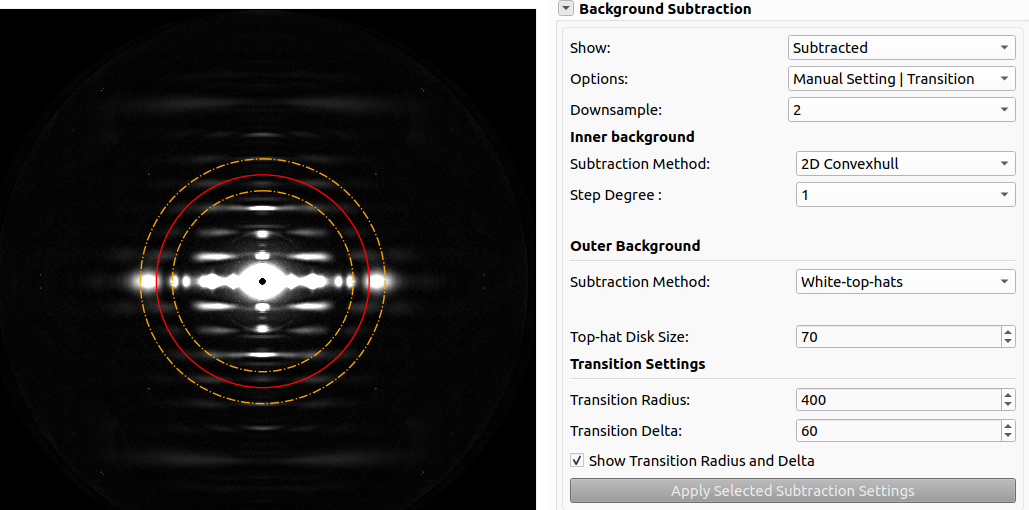
To obtain plausible background removal over the full pattern with the non-parametric methods, use Manual Setting | Transition, which fits an inner method at small radii and an outer method at large radii, then merges the two estimates at a Transition Radius. As an alternative, parametric (iterative 2D) background fitting models the equatorial streak and the general background as explicit 2D functions and subtracts them, optionally before a non-parametric method runs on the residual.
The integrated intensity of the estimated background image can be used to normalize the measured intensities of diffraction features in a series of images. To do this, select “Manual setting | One method” and set Rmin and Rmax to values that exclude unwanted portions of the pattern, then apply it uniformly to every frame in a sequence. The summary csv file will contain the integrated background sum between rmin and rmax for each frame.
See Examples for more details and the Use cases section for specific scenarios.
Use cases
Use case |
Approach |
|---|---|
I want to reveal equatorial structure near the beam. |
Manual Setting | One Method with 2D Convexhull, or parametric background fitting which is significantly more time consuming but provides a smoother background. |
I want to normalize measured intensities across a series of frames using the background level. |
Manual Setting | One Method with fixed R-min/R-max applied uniformly to every frame; read the integrated background sum from the summary csv. The method may be set manually (e.g. 2D Convex Hull) or be the one chosen after Automated Processing. |
I need a clean background across the whole pattern, including both equatorial and high-angle meridional features relatively fast (e.g. for visualization). |
Manual Setting | Transition: 2D Convexhull for the inner radii, White-top-hats or Smoothed-Gaussian for the outer radii, blended at the Transition Radius |
I need a clean background across the whole pattern, including both equatorial and high-angle meridional features. I want a smooth analytic background and I can wait to parametric fitting. |
Parametric (iterative 2D) background fitting, optionally followed by a non-parametric method on the residual (Subtract fitted before non-parametric). |
I’m working at high angles, where meridional layer reflections and lines dominate. |
White-top-hats or Smoothed-Gaussian, applied manually or via Automated Processing. |
I don’t know which method or parameters suit this dataset. |
Automated Processing — click Apply Default Optimization for a good starting point, then refine in Optimization Settings. For parametric fitting, set the general component’s Component 2 to |
I need to batch-process a folder with visually different images (e.g. mixed muscle types). |
Automated Processing: build a few saved configurations and let Choose best configuration for images automatically pick per image. |
I need to reproduce a GUI-tuned result from the command line / a script. |
Headless mode with the saved |
Where to find the controls
Background subtraction is configured in the Results tab:

Background Subtraction panel (collapsible section on the right) — quick access to mode, method parameters, apply buttons, and current configuration summary.
Non-parametric Subtraction Processing Options
Under Non-parametric Background Subtraction, use the Options dropdown in the Results tab to choose how background is applied.

Option |
Description |
|---|---|
Manual Setting | One Method |
A single subtraction method on the full pattern (inner region). Method and parameters are set in the panel; click Apply Selected Subtraction Settings to reprocess. |
Manual Setting | Transition |
One method for radii below the transition radius (inner) and another for radii above (outer). Results are merged using Transition Radius and Transition Delta. |
Automated Processing |
Parameter search and/or selection from saved configurations using the compound loss metric. Use Apply Default Optimization on the current image, then tune settings in Advanced Configuration. |
Manual Setting | One Method
Subtraction Method — Select the background subtraction method to use.
Method-specific parameters — Set the method-specific parameters.
Apply Selected Subtraction Settings — Click to apply the selected subtraction settings.
Set the method and parameters to use for the background subtraction.
Manual Setting | Transition
Inner background — Method and parameters for radii inside the transition region (e.g. 2D Convexhull).
Outer background — Separate method and parameters for larger radii (e.g. Smoothed-Gaussian).
Transition Radius — Radius where inner and outer estimates are blended.
Transition Delta — Width of the linear blend zone.
Show Transition Radius and Delta — Overlay transition circles on the folded image.
Set the transition radius just outside the M3 meridional peak when possible.

Automated Processing
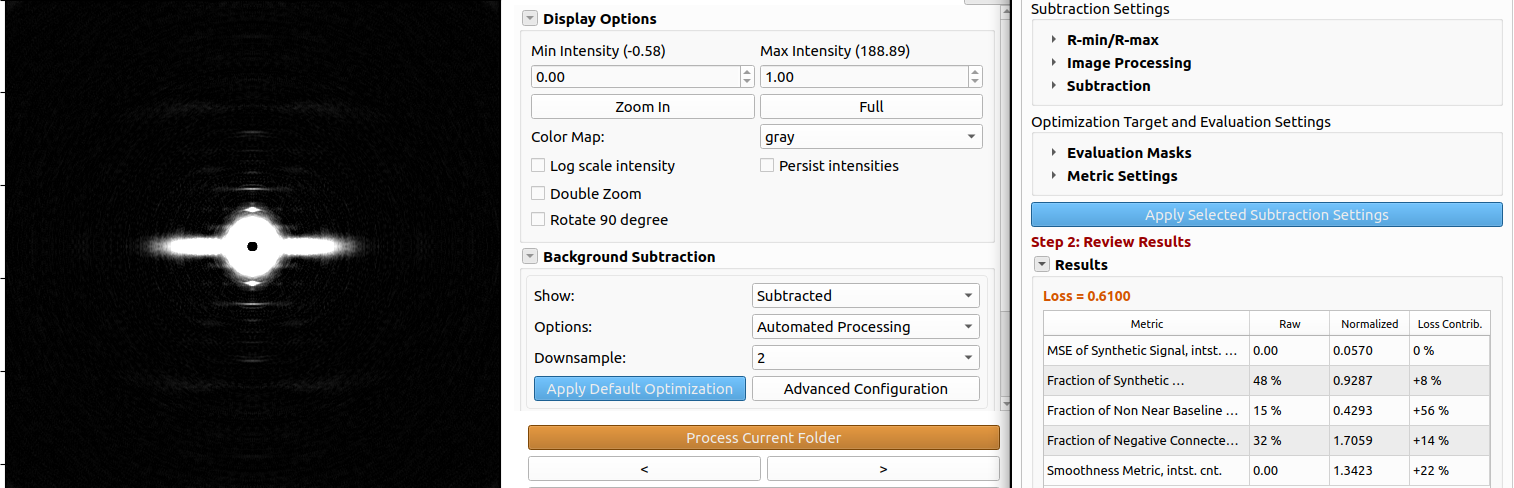
Apply Default Optimization runs a parameter search with default methods (White-top-hats and Smoothed-Gaussian) on the current image and adds a Default Optimization entry to the configuration table. This is a good starting point for most datasets: if the results are satisfactory, review the next image (the same configuration applies) and run Process Folder to process the entire folder.
Advanced Configuration opens the Background Subtraction Settings dialog, where the optimization target, evaluation masks, metric weights, saved configurations, and batch behavior are tuned. See Optimization Settings for the full walkthrough and parameter reference.

Subtraction methods and parameters
Six methods are available (as well as None and Average). Visible parameters depend on the selected method. The algorithms are described in detail in How it works — Step 8. Parameter cheat-sheet:
Method |
Key parameters |
|---|---|
Circularly-symmetric |
Pixel range %, radial bin size, smoothing factor |
2D Convexhull |
R-min, angle bin (default 1°) |
Roving Window |
R-min, window size (X/Y), pixel range %, smoothing, tension |
White-top-hats |
Top-hat disk size |
Smoothed-Gaussian |
R-min, number of cycles, Gaussian FWHM |
Smoothed-BoxCar |
R-min, number of cycles, box car size (X/Y) |
In Transition mode each method has a separate outer-parameter set (suffix _out in the JSON).
Default optimization searches White-top-hats and Smoothed-Gaussian unless you change the method list.
Parametric (iterative 2D) background fitting
Parametric fitting models the diffuse background as an explicit 2D function and subtracts it, in contrast to the non-parametric methods above (Smoothed-Gaussian/Boxcar, 2D Convex Hull, white-top-hats, etc.), which estimate the background numerically. It targets the two structures that dominate a folded muscle pattern: the anisotropic equatorial streak near the beam and the broad, near-isotropic general background. Use it when a smooth analytic background that does not follow the peaks is preferable. It can be combined with a non-parametric method: after applying a parametric fit, enable Subtract fitted before non-parametric so a non-parametric method runs on top of the fitted residual.
Fitting runs in the Iterative 2D Background Fitting window, opened from the Parametric Background Fitting panel in the Results tab (or from the Background Subtraction Settings dialog). It operates on the quadrant-folded image; on apply, the residual (image minus fitted background) replaces the current result.

See Background Fitting for the model, the fitting procedure, mask parameters, and the full settings reference.
Examples
Example 1: High Angle Features with Automated Processing - Intact Mouse Skeletal Muscle - Faint pattern & faint background
The default weights are used for the optimization.
Example 2: Whole Pattern Background Subtraction with Transition - 2D Convexhull for Inner and Smoothed Gaussian for Outer - Skinned Pig Cardiac Muscle - High intensity background
This example shows the use of transition mode to remove background on the whole pattern. This is preferable for visualization of patterns where the equatorial features are important. The transition radius and delta are shown in yellow and red.
Headless mode
Background subtraction parameters can be set in qfsettings.json. Important keys include bgsub, bgsub_out, transition_radius, transition_delta, fixed_rmin, fixed_rmax, method-specific fields (fwhm, cycles, win_size_x, win_sep_x, etc.), and bg_options (0 = one method, 1 = transition, 2 = automated). For automated batch behavior, also pass saved configurations and flags such as choose_configurations_auto as produced by saving settings from the GUI (File → Save current settings). See Optimization Settings for the settings behind the automated search, and Background Fitting — Headless mode for the bgfit_* keys used by parametric fitting.
See How to use — Headless Mode for the general headless workflow.