Common Settings
Several configuration settings and image-processing algorithms are shared across multiple MuscleX modules. Rather than repeating them in each module’s documentation, they are described here once.
Modules that use these settings: Quadrant Folding (qf), Equator (eq), Projection Traces (pt), Add Intensities Single/Multiple Experiment (aise/aime), and X-Ray Viewer (xv, center tools only).
Table of Contents
Calibration Settings
A calibration image is a shot of a membrane sample that gives a ring in the diffraction pattern at a known spacing in inverse nm. By fitting this ring to a circle, MuscleX can refine the diffraction center and use the fitted radius to convert spacings from pixels to nm.
Implementation Details
The calibration circle is fitted numerically to a set of user-selected or automatically detected points on the calibrant ring. The fitting minimises the residuals between the selected points and a geometric circle model. When advanced optimisation is enabled, a Differential Evolution global search is used to escape local minima, followed by MAD-based outlier rejection (Median Absolute Deviation statistics) to discard poorly placed points, and a multi-start refinement to select the best result from several initial guesses.
The fitted circle radius, together with the known d-spacing of the calibrant ring and the wavelength λ, determines the sample-to-detector distance (SDD). From SDD, λ, and the pixel size, MuscleX computes d10 using Bragg’s law:
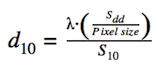
Fig. 14 d10 formula relating wavelength, sample-to-detector distance, S10, and pixel size.
How to Use
Set by Calibration Image
Select a calibration image using the calibration panel in the processing workspace.
Inspect the fitted circle — the center and radius are overlaid on the image if the ring is found automatically (see Fig. 15).
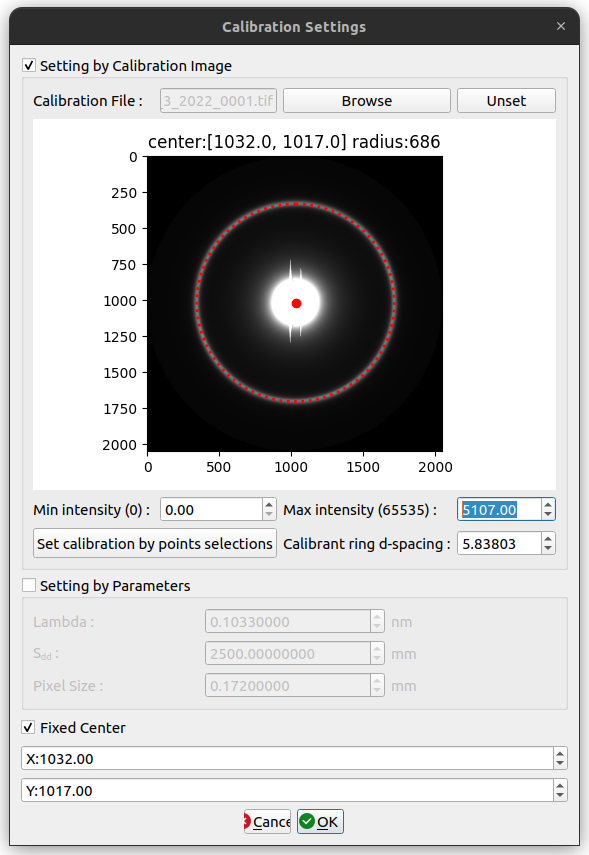
Fig. 15 Calibration dialog showing the automatically fitted circle overlaid on a calibrant ring image.
If the fit is wrong or missing, click Set manual calibration by point selections to open the Manual Calibration Dialog (see Fig. 16).
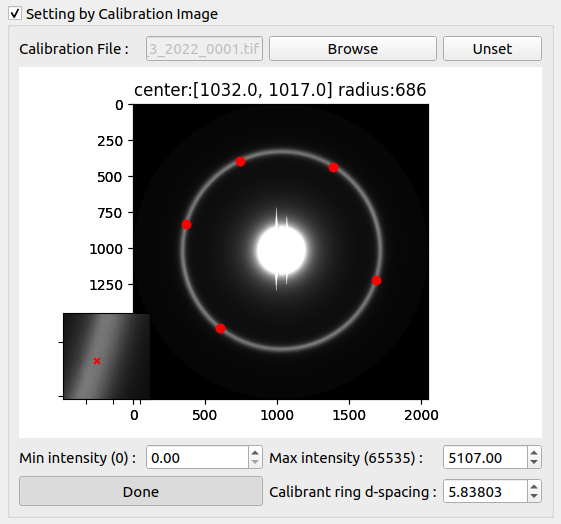
Fig. 16 Manual Calibration Dialog showing the main image (left) and zoom view (right) for precise point selection.
Select points on the ring using the two-step process: click once on the main image for the approximate location, then click in the zoom view for the precise location. Select at least 5 points, ideally 8–12 spread evenly around the ring.
Enter the calibrant ring d-spacing and click Done, then OK. The image is reprocessed with the new calibration.
Set by Parameters
Enter the calibration parameters manually: wavelength λ, sample-to-detector distance SDD, and pixel size. These are used directly to calculate d10 (see Fig. 14), bypassing automatic ring fitting.
Fixed Center
Check the Fixed Center option to pin the beam center to a user-supplied coordinate, independently of the calibration image.
Enter the x and y coordinates of the beam center. The image reprocesses when these values change.
Leave the box checked to carry the fixed center forward when navigating to the next image or processing the folder.
Manually Select Detector
Choose a detector from the drop-down list to improve MuscleX results for your specific hardware. The list is provided by pyFAI’s detector registry.
Leave unset to let MuscleX select the detector automatically from the image dimensions. If the selected detector does not match the image, the program falls back to the default.
Diffraction Center and Rotation
The diffraction center is the point of zero scattering vector — where the direct beam hits the detector. The rotation angle aligns the equatorial axis of the diffraction pattern with the horizontal axis used by the processing algorithms.
Implementation Details
Finding the Diffraction Center
To find the center automatically, the image is first converted to 8-bit and a Gaussian filter is applied to reduce noise. Thresholding is then applied, and the center is estimated by fitting an ellipse to the largest contour of the thresholded image (see Fig. 17 and Fig. 18).
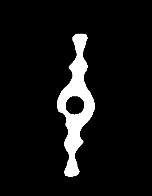
Fig. 17 Thresholded diffraction image. The largest contour is used to estimate the diffraction center.
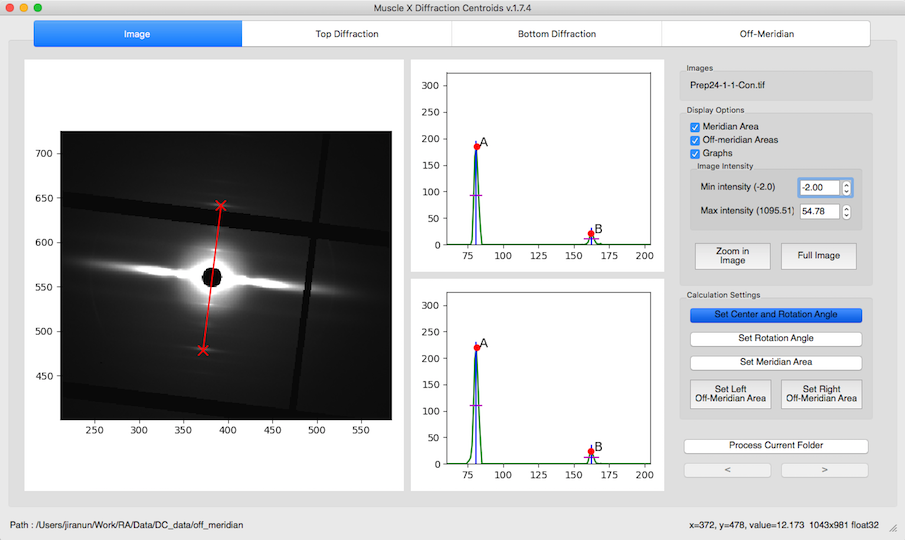
Fig. 18 Diffraction image after automatic center detection. The detected center is marked on the pattern.
If the fitted center is at a fractional pixel position, the image is translated so that the center falls on the nearest integer coordinate. If no ellipse can be fitted, the center is computed using the moments method from OpenCV.
Calculating the Rotation Angle
The program first estimates a rotation angle by fitting an ellipse to the diffraction pattern. It then refines the angle using pyFAI’s azimuthal integrator in two passes: an initial pass over 360 values (one per degree) to locate the highest-intensity peak, followed by a second pass at 0.1-degree resolution around that peak for precision (see Fig. 19). If the refined angle is close to the ellipse-fit estimate, the refined value is used; otherwise the ellipse estimate is returned. The angle returned is always the closest acute angle.
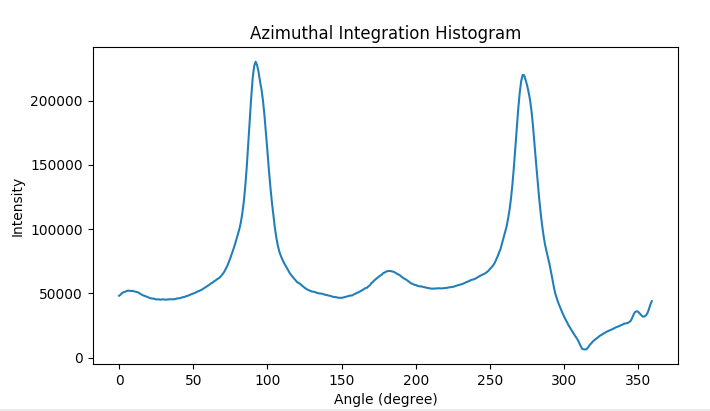
Fig. 19 Azimuthal integration histogram. The dominant peak identifies the rotation angle of the diffraction pattern.
How to Use
All center and rotation tools can be combined with Double Zoom for sub-pixel accuracy.
Quick Center and Rotation Angle
Zoom in to the region of the diffraction pattern for easier placement.
Click Quick Center and Rotation Angle.
Click the first reflection peak on one side of the equator.
Click the corresponding opposite peak on the other side of the equator. The center and rotation are computed from the midpoint and angle of the two clicks (see Fig. 20).
Press ESC to cancel.
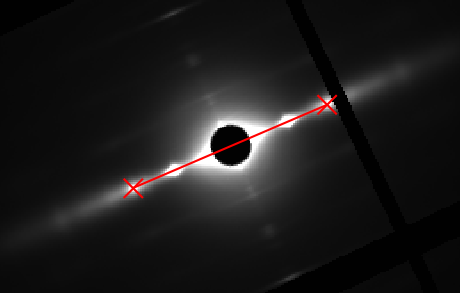
Fig. 20 Quick Center and Rotation Angle tool. Two opposite reflection peaks are selected; the program derives the center and rotation from their midpoint and connecting angle.
Center and Rotation Mode Indicators: The interface shows whether automatic or manual center/rotation is active.
Set Center By Chords
Zoom in to the diffraction region.
Click Set Center By Chords.
Click multiple points along the circumference of the diffraction ring. Perpendicular bisectors (blue lines) appear as you select points (see Fig. 21).
Click the button again when done. The center is the average of the perpendicular bisector intersections.
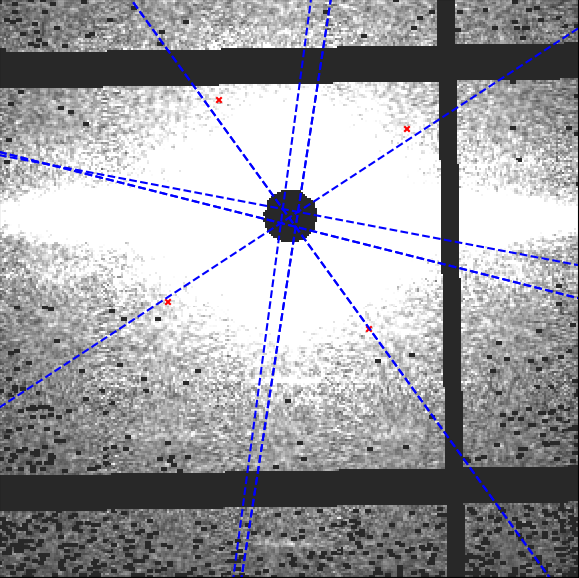
Fig. 21 Set Center By Chords. Blue perpendicular bisectors to the chords intersect near the diffraction center.
Set Center By Perpendiculars
Zoom in to the diffraction region.
Click Set Center By Perpendiculars.
Click pairs of reflection peaks: first a peak on one side of the equator, then its opposite on the other side (horizontal pair). Repeat for vertical pairs (above/below equator). Each pair defines a line through the center (see Fig. 22).
Click the button again when done. The center is the average of all line intersections.
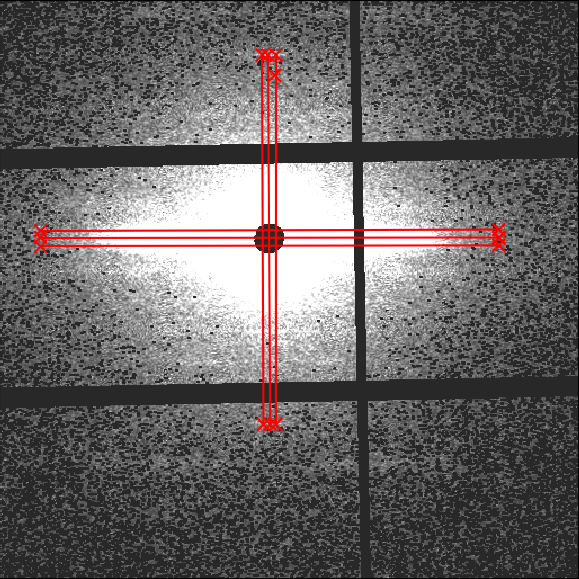
Fig. 22 Set Center By Perpendiculars. Pairs of opposite peaks define horizontal and vertical lines whose intersections locate the center.
Set Rotation Angle
Click Set Rotation Angle (assumes the center is already correctly placed).
Move the line until it aligns with the equatorial axis of the diffraction pattern (see Fig. 23).
Click to accept the rotation angle. Press ESC to cancel.
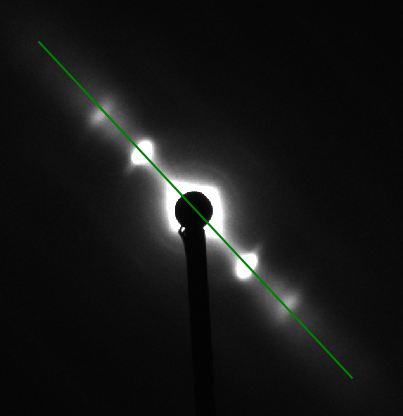
Fig. 23 Set Rotation Angle tool. The interactive line is dragged to align with the equatorial axis.
Fix Center
Check the Fix Center checkbox.
Enter the x and y coordinates of the beam center (before rotation). The image reprocesses immediately.
Leave the box checked to apply the fixed center to subsequent images in the folder.
Double Zoom
Double Zoom provides sub-pixel accuracy when placing center or rotation control points. A 20×20 pixel region around the cursor is cropped and scaled up 10× in a subplot (see Fig. 24).
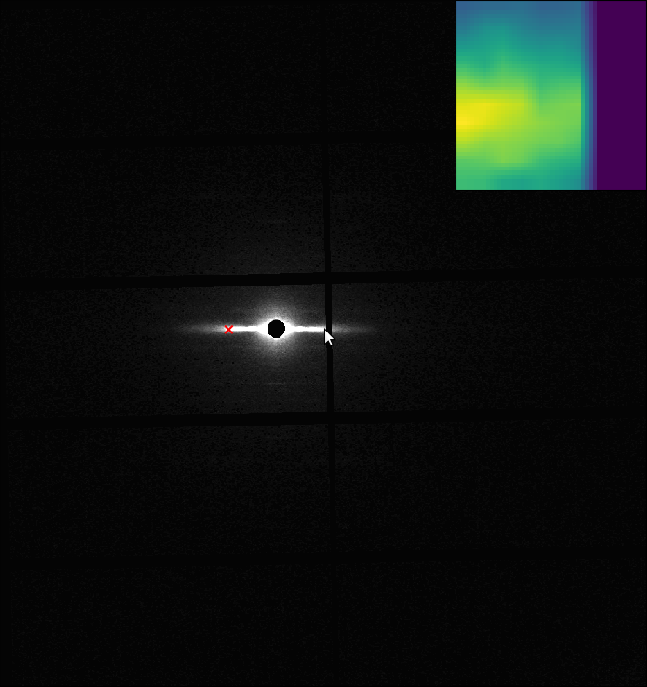
Fig. 24 Double Zoom panel (top right). The 20×20 pixel region around the cursor is shown at 10× magnification for sub-pixel point placement.
Check the Double Zoom checkbox — the subplot appears.
Click a calibration button (e.g. Quick Center and Rotation Angle).
Move the mouse to the approximate position and click to freeze the subplot.
Click the exact location in the subplot — the corresponding point is placed on the main image.
Repeat for the second point.
Uncheck Double Zoom to hide the subplot.
Restoring Automatic Settings
Click Restore Auto Center to return to automatic center detection. Choose whether to apply to the current image only or all subsequent images.
Click Restore Auto Rotation to return to automatic rotation detection.
Click Apply Current Settings to propagate a manually set center or rotation to all subsequent images in the folder.
Center and Rotation Management
Configuration Fingerprinting: When center or rotation settings change, the result cache is automatically invalidated to keep results consistent.
Manual Settings Preservation: Manual center and rotation values are preserved during cache operations.
R-min
R-min is the minimum radius from the diffraction center that is included in the analysis. Pixels closer to the center than R-min — typically dominated by the beamstop shadow — are excluded from histogram projection, peak fitting, and all downstream calculations.
Implementation Details
The program builds a radial intensity histogram (x-axis: radius in pixels, y-axis: summed intensity). R-min is set to the radius at which the histogram first falls to 50% of its maximum value (see Fig. 25). To prevent over-removal, this radius is constrained to be no more than 150% of the radius of the maximum. For example, if the maximum is at radius 35, R-min is searched in the range 36–59 (35 × 1.5 ≈ 53, but the hard limit is 59 = 35 × 1.5 rounded up with a small margin). If the 50% threshold is not found within this range, R-min defaults to the upper bound.
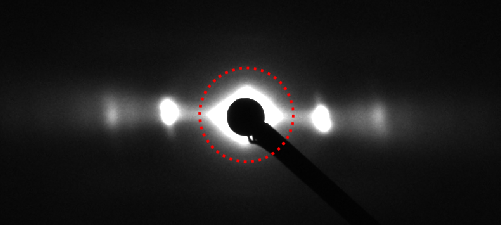
Fig. 25 Radial intensity histogram used to determine R-min. The dashed line marks the 50% maximum threshold; R-min is set at the crossing point.
Herman Orientation Factor
The Herman Orientation Factor (HoF) quantifies the degree of orientational order in the diffraction pattern. It is used by Scanning Diffraction and related modules.
Implementation Details
After azimuthal integration produces a circular intensity histogram (see Fig. 19), the Herman Orientation Factor is calculated for each degree using:
x is either 180° or 90°, yielding one HoF value per degree in the histogram. See Page 7 of this reference for properties of the Herman Factor.
The figures below show the HoF concept and representative results from integration over 90° and 180°.
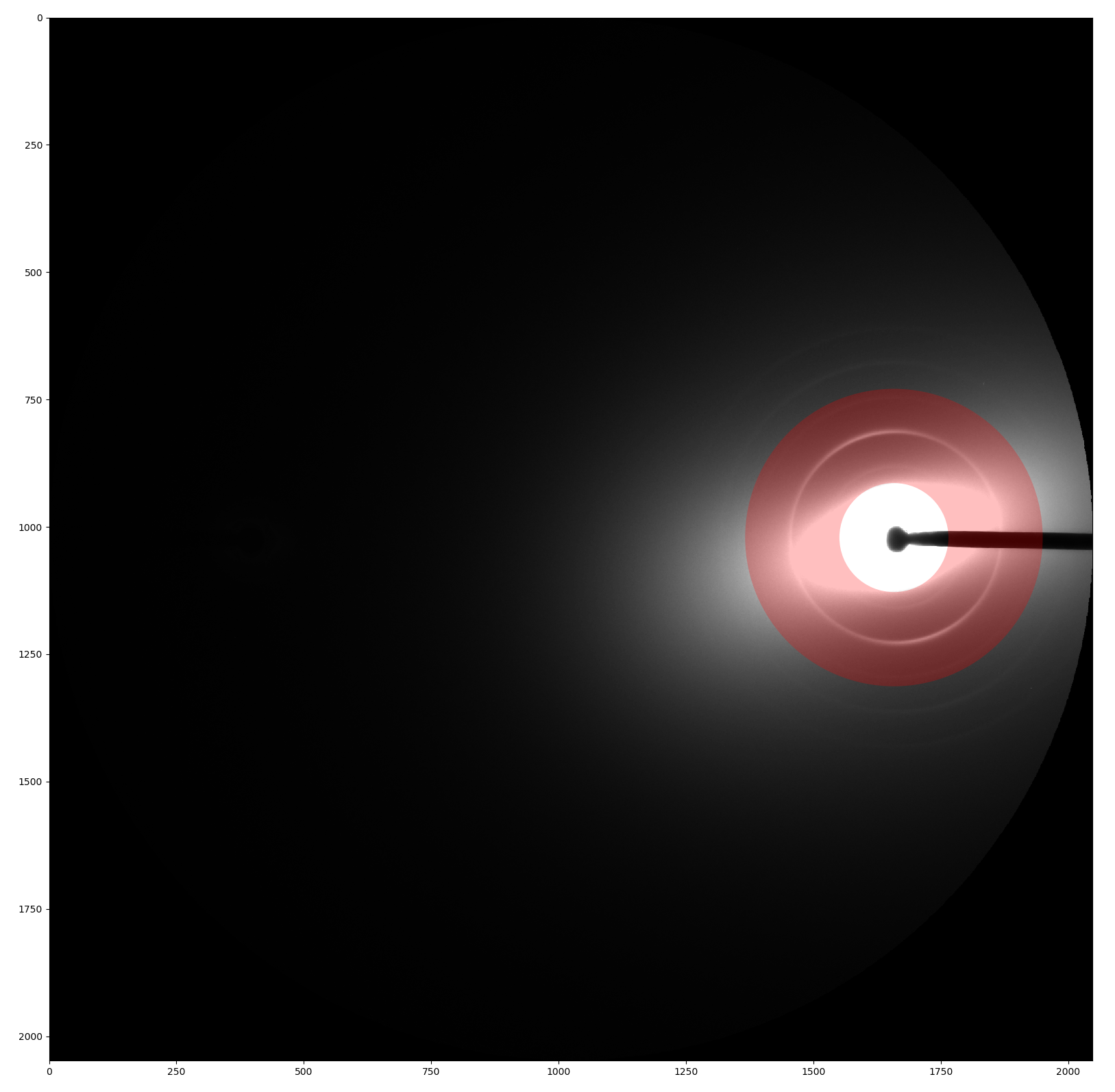
Fig. 26 Schematic of the azimuthal angle φ used in the Herman Orientation Factor formula.
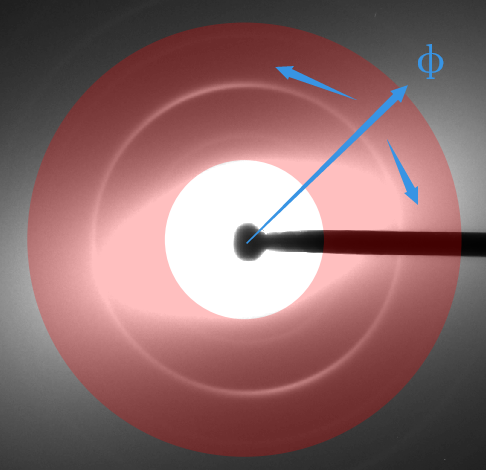
Fig. 27 Azimuthal intensity histogram with the Herman Orientation Factor integration illustrated.
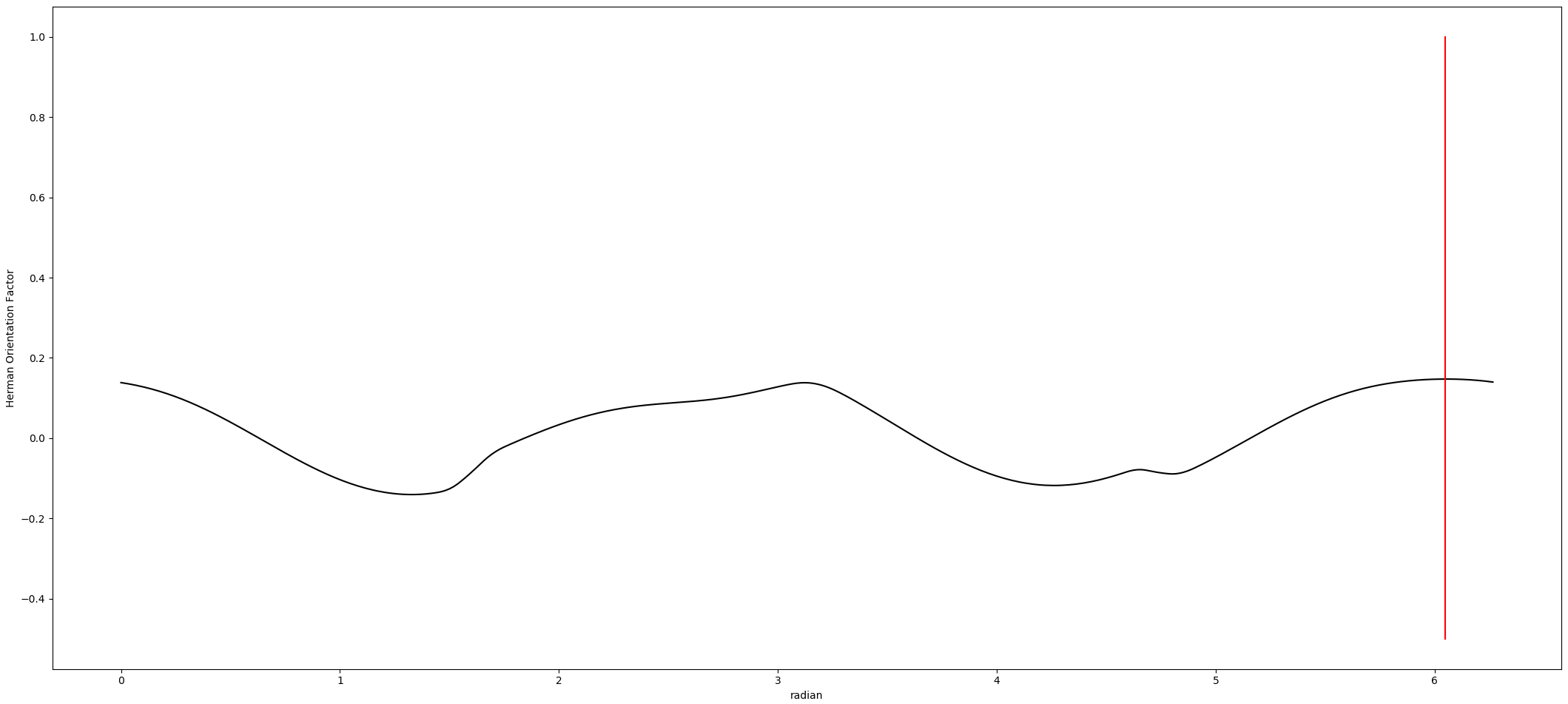
Fig. 28 Herman Orientation Factor results from azimuthal integration over 90°.
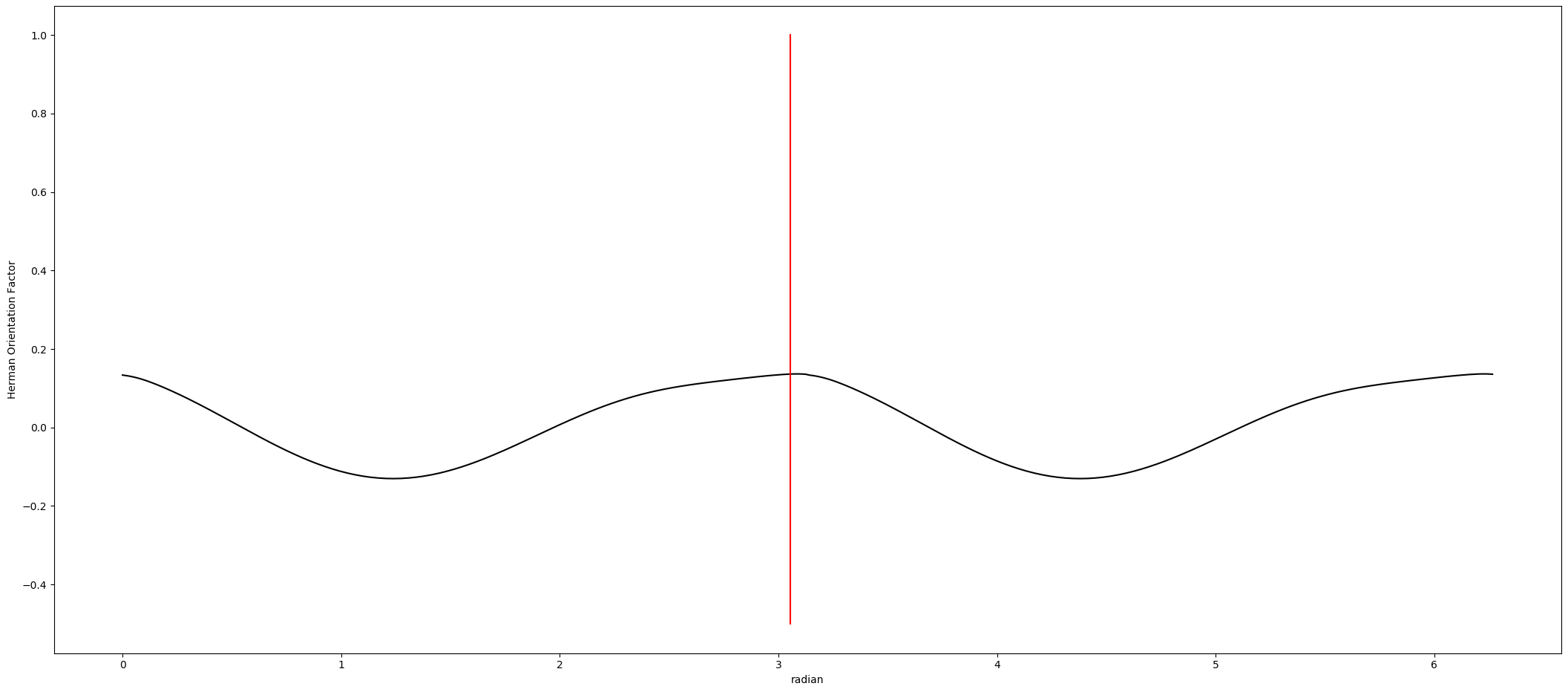
Fig. 29 Herman Orientation Factor results from azimuthal integration over 180°.
Empty Cell Image and Mask
These two independent settings — Empty Cell Image and Mask — are configured through the Apply Empty Cell Image and Mask panel in the processing workspace. Each has its own button to open its dialog, and each can be independently enabled or disabled via a checkbox once its settings have been saved.
Implementation Details
Empty Cell Subtraction
A diffraction pattern from a muscle sample is the sum of the true muscle signal and a background contribution from the sample holder, solvent, and beam path. Subtracting an empty cell image — a pattern recorded without a sample — isolates the muscle diffraction signal, which is important for accurate peak fitting and intensity ratios.
When Apply Empty Cell Image is checked, the program scales the empty cell image by the configured scale factor and subtracts it from the working image before any analysis. Pixel values that become slightly negative after subtraction (due to noise) are clipped to zero.
Masking
A mask is a binary image marking which pixels should be ignored during processing. When Apply Mask is checked, the program loads mask.tif before analysis begins. Each pixel where mask == 0 is overwritten with a sentinel value of −1.0 in the working array. The raw file on disk is never modified. If empty cell subtraction is also enabled, it runs first; the mask sentinel assignment follows.
Masked pixels are excluded from histogram projection, peak fitting, and all downstream calculations. In modules such as Equator, ignored columns are interpolated over to preserve a continuous diffraction profile for fitting. See each module’s documentation for details on how masking interacts with its specific analysis pipeline.
How to Use
Empty Cell Image
Click Set Empty Cell Image in the processing workspace panel to open the Empty Cell Subtraction dialog.
Click Select Empty Cell Image to browse and select a single empty cell image file (any format supported by
fabio, e.g..tif,.edf,.cbf). A status indicator turns green when the image is loaded.Adjust the Empty Cell Image Scale spin box (range 0–1000, default 1.0) to match the empty cell exposure to the sample exposure. The difference image updates live as you change the scale.
Compare the images using the radio buttons:
Option
Description
Difference Image (Original − Empty Cell)
Shows the subtraction result at the current scale. This is the image that will be processed.
Original Image
Shows the raw sample image with no subtraction.
Empty Cell Image
Shows the empty cell image scaled by the current factor.
Click Save. The configuration is written to
blank_image_settings.jsonin the settings folder, and the Apply Empty Cell Image checkbox in the main panel becomes enabled. Uncheck it at any time to temporarily disable subtraction without deleting the configuration.
When you reopen the same image directory, the saved empty cell image path and scale factor are loaded automatically, and the checkbox is restored to its last saved state.
Mask
Click Set Mask in the processing workspace panel to open the Set Image Mask dialog.
Configure one or more mask methods in the Mask Options group. Their combined result is previewed as a color overlay in real time:
Drawn Mask
Click Draw Mask to launch the
pyFAI-drawmasktool. Paint arbitrary regions using geometric tools (polygon, rectangle, brush, etc.).After closing the tool, the mask is loaded automatically. Enable the Drawn Mask checkbox to include it.
Drawn regions are shown as a red overlay.
Low Mask Threshold
Enable the Low Mask Threshold checkbox to mask all pixels below the specified value (default −0.01). This targets detector gaps or dead pixels assigned a negative sentinel value.
Optionally enable Enable Mask Dilation with a 3×3, 5×5, or 7×7 kernel to expand the low-threshold mask outward — useful for border pixels adjacent to sensor gaps.
Low-threshold regions are shown as a green overlay.
High Mask Threshold
Enable the High Mask Threshold checkbox to mask all pixels above the specified value (default 64,000). This targets saturated pixels on 16-bit detectors.
The same optional dilation controls are available.
High-threshold regions are shown as a blue overlay.
Review the color legend:
Color
Meaning
Green
Low Mask Threshold
Blue
High Mask Threshold
Red
Drawn Mask
Purple
Rmin / Rmax mask (applied by the main processing window)
Click Save. The following files are written to the settings folder:
mask_config.json— threshold values and dilation kernel sizes.drawn-mask.edf— the rawpyFAI-drawmaskoutput (if a drawn mask was created).mask.tif— the final combined binary mask applied during processing.
If all three methods are disabled when you click Save, all mask files are removed and the mask is cleared entirely. The Apply Mask checkbox in the main panel becomes enabled once
mask.tifexists. Uncheck it to temporarily disable the mask without deleting the saved settings.
When you reopen the same image directory, the saved mask configuration is loaded automatically and the checkbox is restored to its last saved state.