Total Diffracted Intensity
Introduction
The Total Diffracted Intensity (TDI) tool is part of the MuscleX suite developed for analyzing X-ray diffraction images of biological samples, such as muscle fibers. In diffraction experiments, total diffraction intensity is a key quantitative measure — it reflects the overall scattering power of the sample, which is proportional to properties like sample mass, density, or structural order.
This tool allows users to:
Define and apply custom masks to isolate regions of interest (e.g., remove background, beamstop artifacts).
Compute and export total and average intensity values from each image in a folder for downstream analysis.
These metrics are valuable for comparing conditions (e.g., relaxed vs. contracted muscle), normalizing datasets, or identifying outliers during high-throughput imaging workflows.
How to Use
Launching the Program
If MuscleX is installed:
musclex tdiFrom source (developer mode):
python3 -m musclex.ui.TotalDiffractionIntensity
Required Python packages:
PyQt5,matplotlib,fabio,numpy,pandas.
User Interface Overview
The main TDI window (see Fig. 9) provides controls for loading images, adjusting display settings, masking, and batch processing.
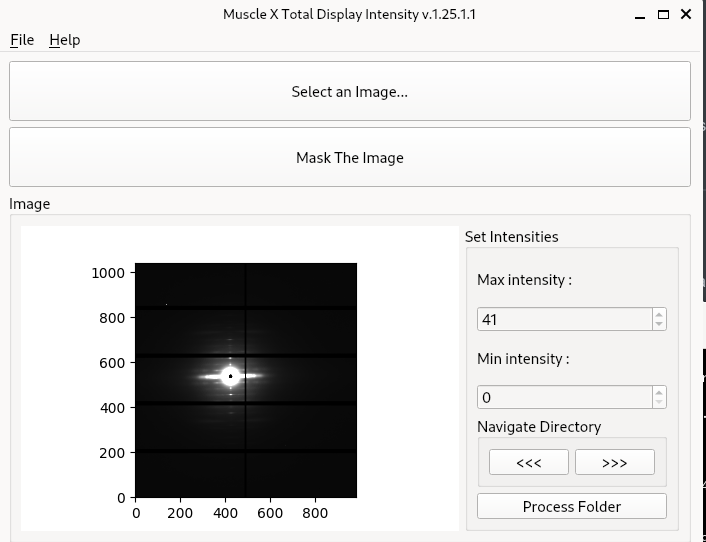
Fig. 9 TDI main window showing the image viewer and controls.
Select an Image — Click “Select an Image…” to open a diffraction image (TIFF or HDF5). The image appears in grayscale using the default intensity range.
Set Intensity Display Range — Adjust the Min intensity and Max intensity values to control the display range. This helps highlight weaker features or saturate bright spots for better contrast.
Mask the Image — Click “Mask The Image” to launch the interactive masking tool (see Mask Definition and Usage). You can define regions to exclude from analysis (e.g., noisy borders). The mask is saved as
tdi_mask.tifand applied to all images.Navigate Images — Use the
<<<and>>>buttons to browse through images in the same folder.Process Folder — Click “Process Folder” to compute and export results for all images. A CSV file containing total and average intensity values is generated in the
tdi_results/subfolder.
How It Works
Image and Mask Loading
The program reads image data using the fabio library. If a mask is defined, it is applied as a binary filter (1 = valid, 0 = excluded).
Total Intensity Calculation
The image is multiplied by the mask to zero out unwanted pixels, and the pixel values in the valid region are summed:
total_intensity = np.sum(masked_image)
Average Intensity Calculation
The number of valid pixels is determined by subtracting the count of masked pixels. Average intensity is the total intensity divided by the number of unmasked pixels:
unmasked_pixels = masked_image.size - np.sum(1 - mask)
avg_intensity = total_intensity / unmasked_pixels
Export
Results are saved to tdi_results/summary.csv with the following columns:
Column |
Description |
|---|---|
|
Image filename |
|
Typically |
|
Sum of all unmasked pixel values |
|
Average value over unmasked pixels |
Mask Definition and Usage
Overview
The Mask and Empty Cell Specification window provides a unified interface for defining masks that exclude undesired regions from X-ray diffraction images. It supports manual drawing, intensity-based masking, radial cropping, and subtraction of empty cell (blank) images. These masks ensure cleaner data and more reliable intensity quantification.
Masking Window Features
The default mask window is shown in Fig. 10.
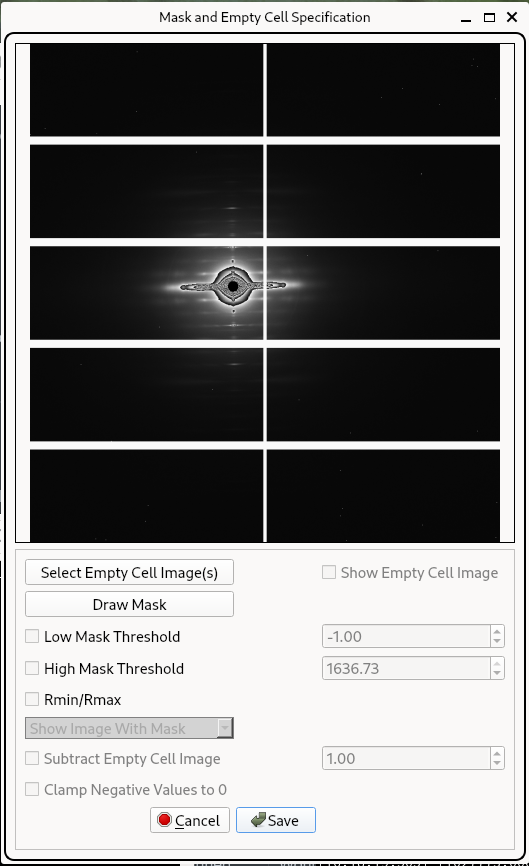
Fig. 10 Default mask configuration window with no thresholds applied.
Feature |
Description |
|---|---|
Select Empty Cell Image(s) |
Load one or more background/blank images to subtract static artifacts like beamstops |
Draw Mask |
Open a drawing interface to manually exclude regions using polygon, rectangle, or brush |
Low Mask Threshold |
Excludes pixels below this intensity (e.g. detector gaps, shadowed areas) |
High Mask Threshold |
Excludes pixels above this intensity (e.g. beam center, saturation artifacts) |
Enable Mask Dilation |
Optional. Expands the mask area around low/high threshold regions using morphological dilation |
Rmin / Rmax |
Masks all pixels outside the selected radial range from the image center |
Subtract Empty Cell Image |
Applies scaled subtraction of selected empty cell image(s) before applying thresholds |
Clamp Negative Values to 0 |
Replaces negative values after subtraction with 0 |
Show Image With Mask |
Dropdown view to preview the mask overlay with current settings applied |
Mask Visualizations
Color coding in the preview overlay:
Green = Low threshold mask
Blue = High threshold mask
Red = Manually drawn mask
Purple = Rmin/Rmax radial mask
Fig. 11 shows an example with both low and high threshold masks and a manually drawn region applied. Fig. 12 shows the result when dilation and radial masking are also enabled.

Fig. 11 Low and high threshold masks with a manually drawn exclusion region overlaid.

Fig. 12 Full combined mask: intensity thresholds, dilation, and Rmin/Rmax radial mask applied simultaneously.
The manual mask drawing interface (see Fig. 13) is launched by clicking Draw Mask and uses the pyFAI drawmask tool.
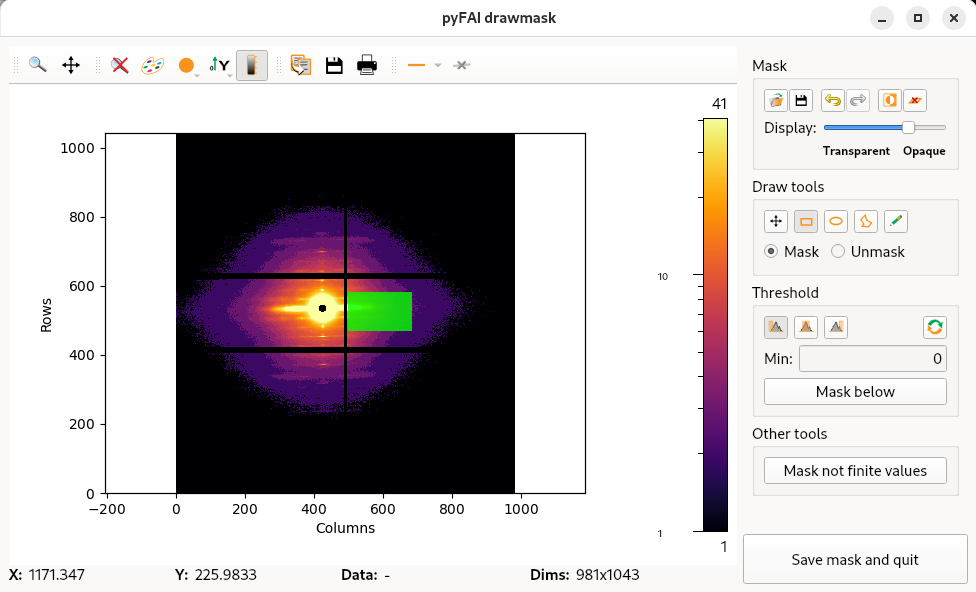
Fig. 13 Manual mask drawing interface (pyFAI drawmask tool).
Example Workflow
Open TDI and click Mask The Image.
In the mask window:
Optionally select a blank image for subtraction.
Enable Low and/or High Mask Threshold and set values.
(Optional) Check Enable Mask Dilation for either threshold.
(Optional) Enable Rmin/Rmax and specify radial bounds.
(Optional) Click Draw Mask to manually exclude areas.
Use Show Image With Mask to inspect the result.
Click Save to generate and store the combined mask.
How Masks Are Combined
After configuration, the following masks are combined via binary AND:
final_mask = (
    manual_mask *
    low_threshold_mask *
    high_threshold_mask *
    low_dilation_mask *
    high_dilation_mask *
    radial_mask *
    blank_subtraction_mask
)
This final mask is applied in downstream image analysis and intensity extraction.
Developer Reference
Component |
File |
Description |
|---|---|---|
TDI integration |
|
|
Masking UI & logic |
|
|
Manual mask drawing |
Called via Draw Mask (pyFAI drawmask tool) |
|
File handling |
|
|